
Team and users
Roles inside your company
Section titled “Roles inside your company”Every user carries exactly one role:
| Role | Typically | Can do |
|---|---|---|
system_admin | The account owner | The company’s highest level of access |
company_admin | Managers | Administer users, settings and billing |
company_staff | Day-to-day users | Campaign work |
The full matrix is in Roles and permissions. To change what a
role means, see Roles and permissions — system_admin
only.
Where to find it
Section titled “Where to find it”Admin → Users. Available to system_admin and company_admin.
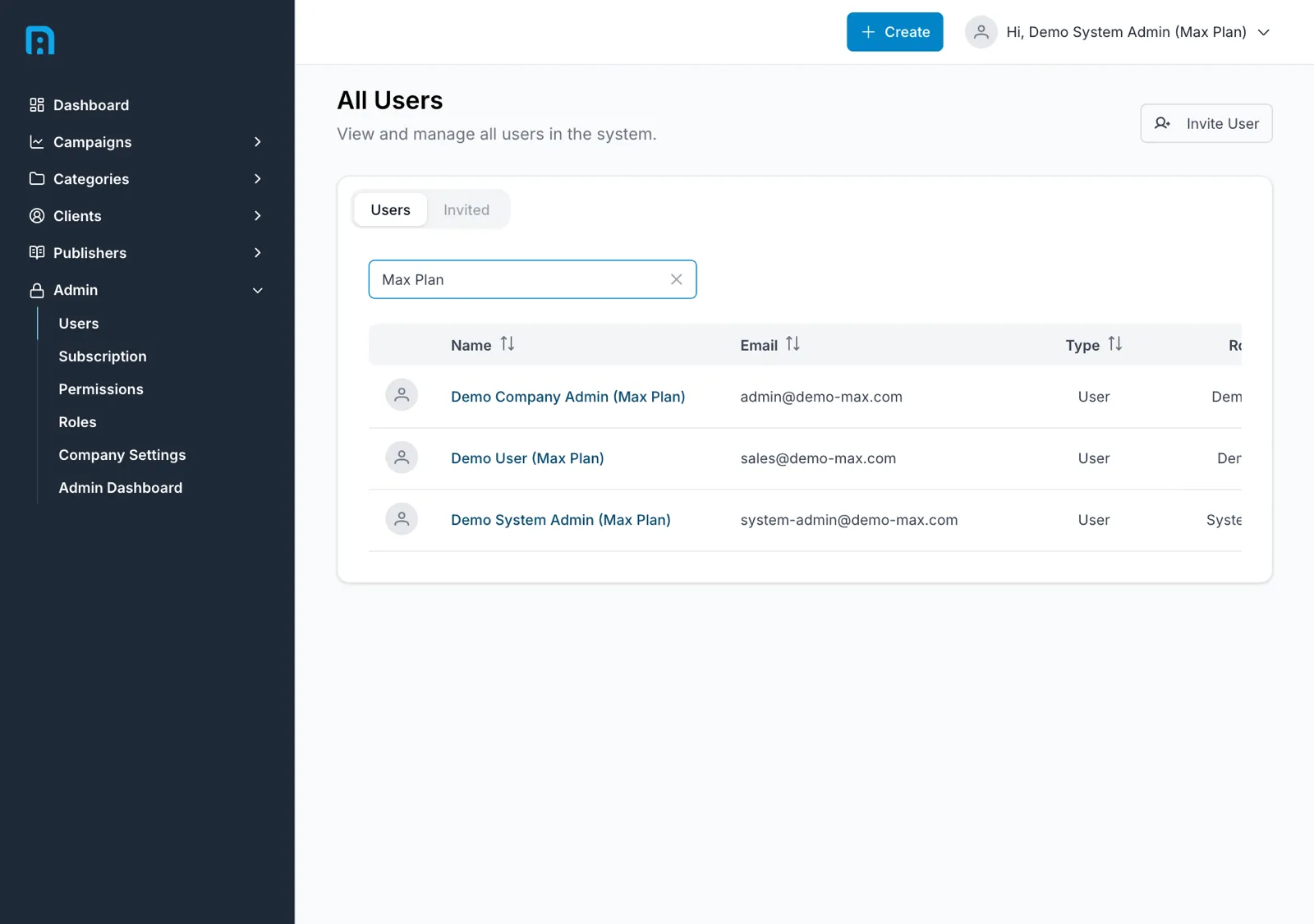
The list shows Name, Email, Type, Role, Status, Last Login and Created On, with a search box and per-row actions. Two tabs sit above it:
- Users — everyone with an account.
- Invited — invitations that have been sent but not yet accepted.
Inviting a colleague
Section titled “Inviting a colleague”Click Invite User.
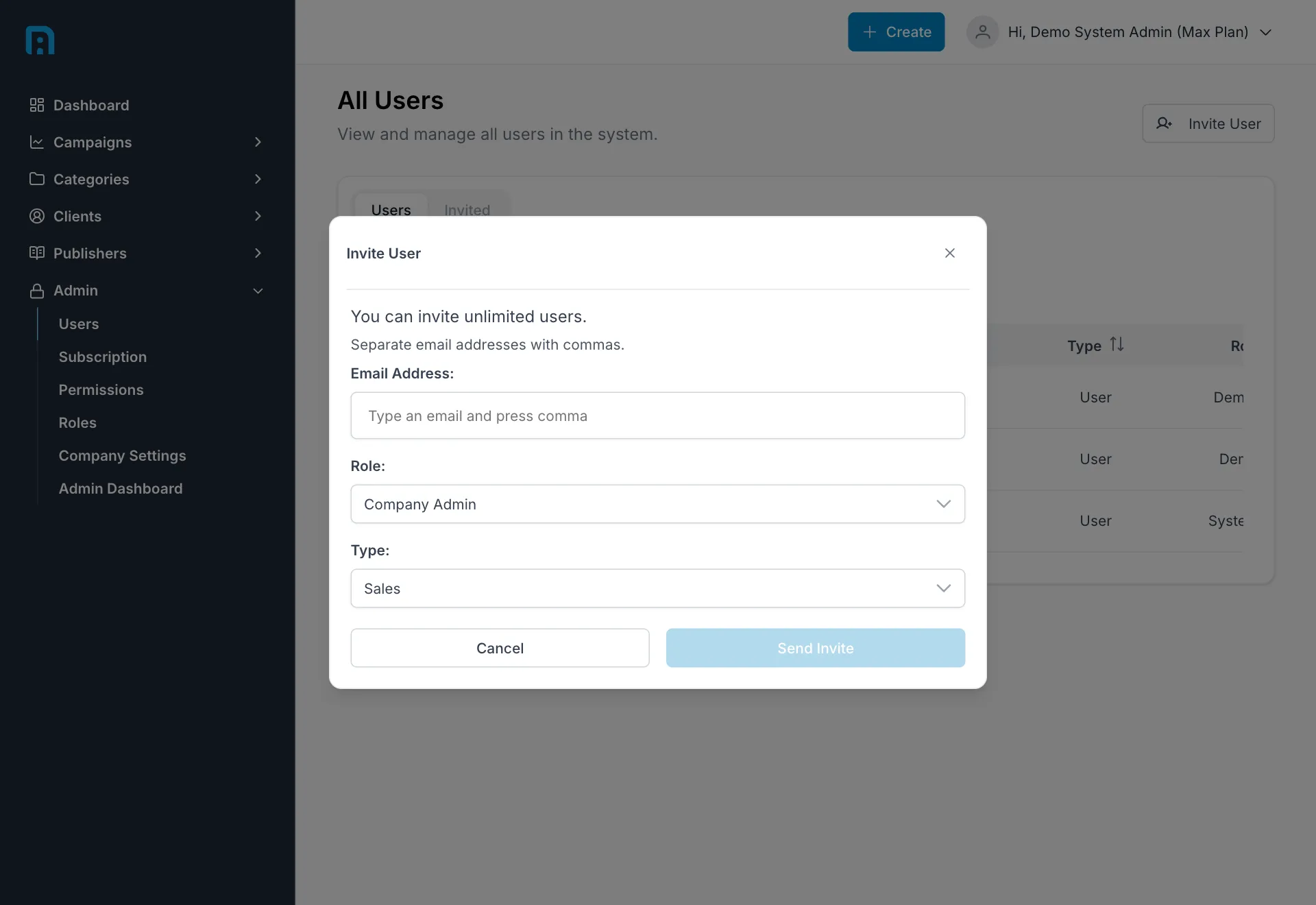
| Field | Notes |
|---|---|
| Email Address | Type an address and press Enter. Several can be added at once |
| Role | Which role the invitee gets — see the table above |
| Type | The account type to create |
Click Send Invite. The invitee receives an email and sets their own password from the link, so you never handle their password.
Tracking invitations
Section titled “Tracking invitations”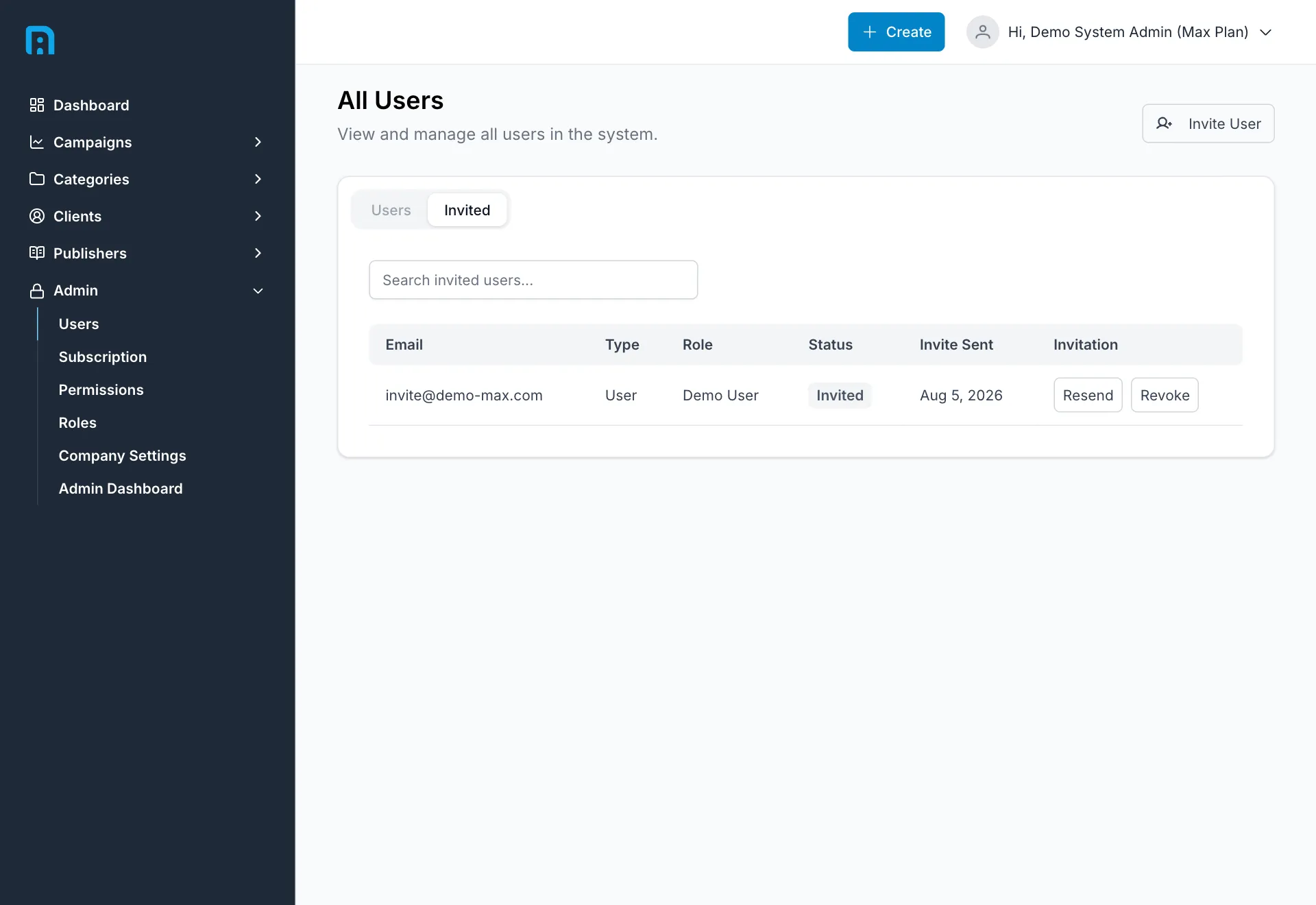
The Invited tab lists outstanding invitations with the email, role, type, status and when the invite was sent. Use it to check whether someone has actually accepted before chasing them.
Campaign-level access
Section titled “Campaign-level access”Roles are not the whole story. Access can also be granted per campaign, so staff see only the campaigns they are assigned to.
Related
Section titled “Related”- Roles and permissions — editing the roles themselves
- Roles and permissions reference