
Getting started
InsightsRN is a web application — there is nothing to install. This page covers getting from no account at all to a working one.
Step 1 — Create your account
Section titled “Step 1 — Create your account”Go to the registration page and fill in your name, email address and a password.
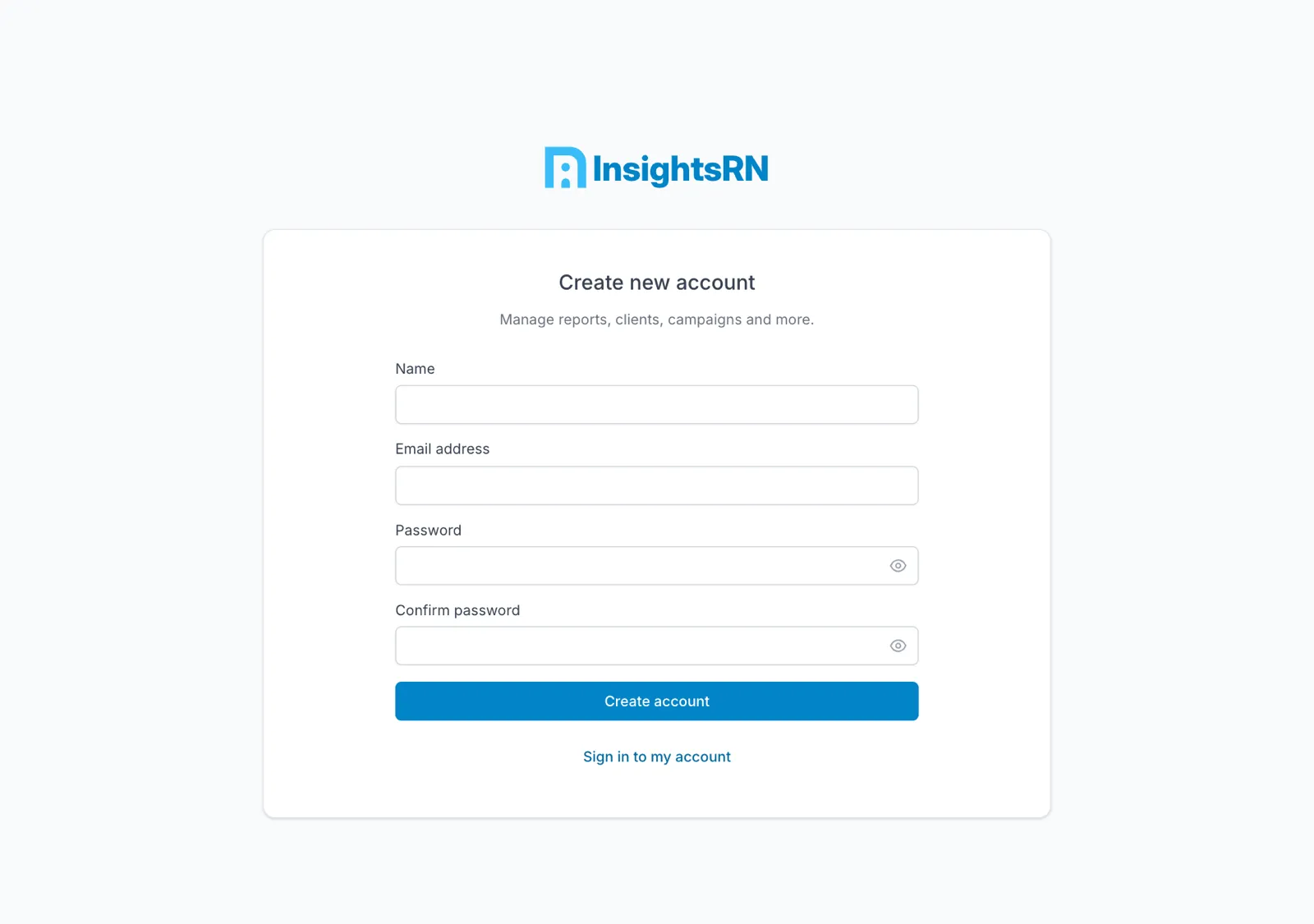
Already have an account? Use Sign in to my account instead.
Step 2 — Confirm your email address
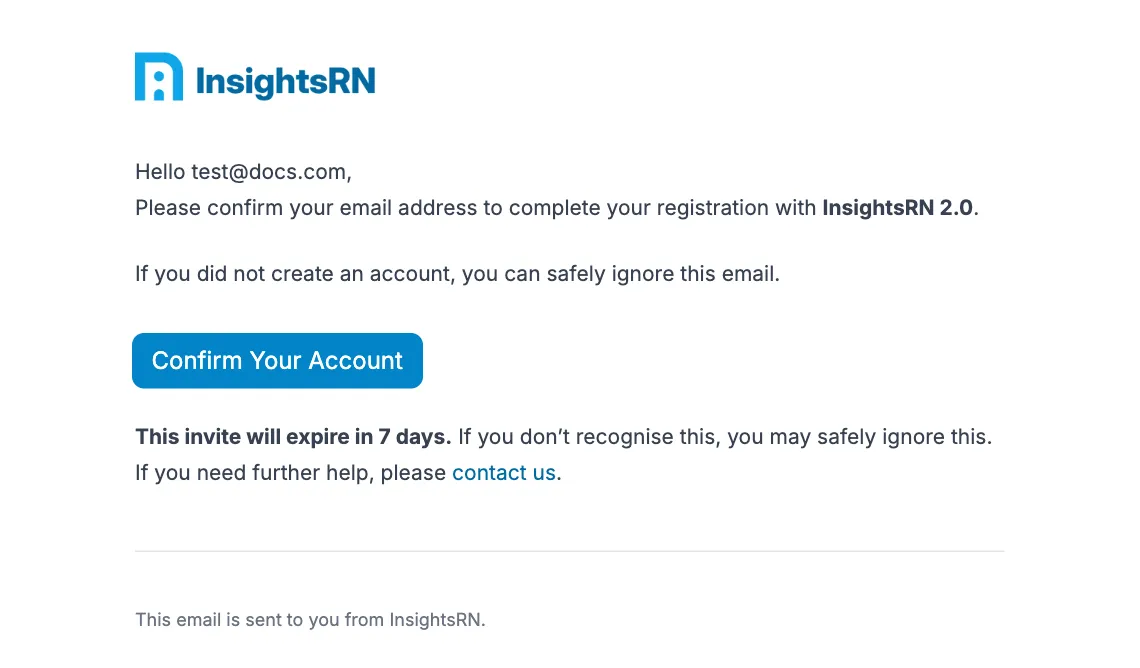
Section titled “Step 2 — Confirm your email address”InsightsRN emails you a confirmation link. Open it and click Confirm Your Account.
Step 3 — Complete onboarding
Section titled “Step 3 — Complete onboarding”The first time you sign in, InsightsRN walks you through setting up your account. This happens once.
Tell it how you will use InsightsRN
Section titled “Tell it how you will use InsightsRN”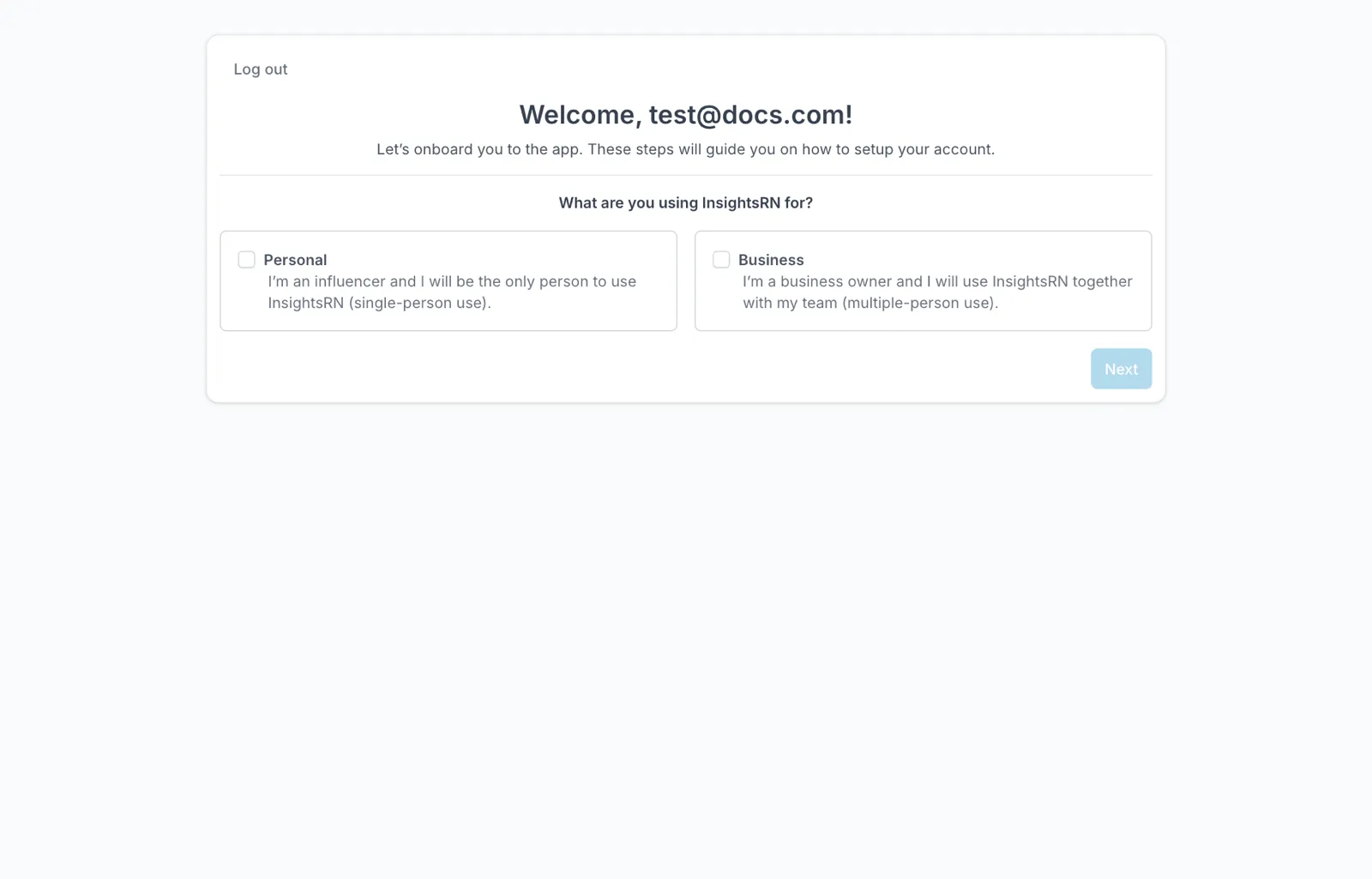
| Choice | Pick this if |
|---|---|
| Personal | You are an influencer and will be the only person using InsightsRN |
| Business | You are a business or agency and will use InsightsRN with a team |
Choosing Business adds the company-profile and invite steps below. Personal is the single-person path.
Fill in your company profile
Section titled “Fill in your company profile”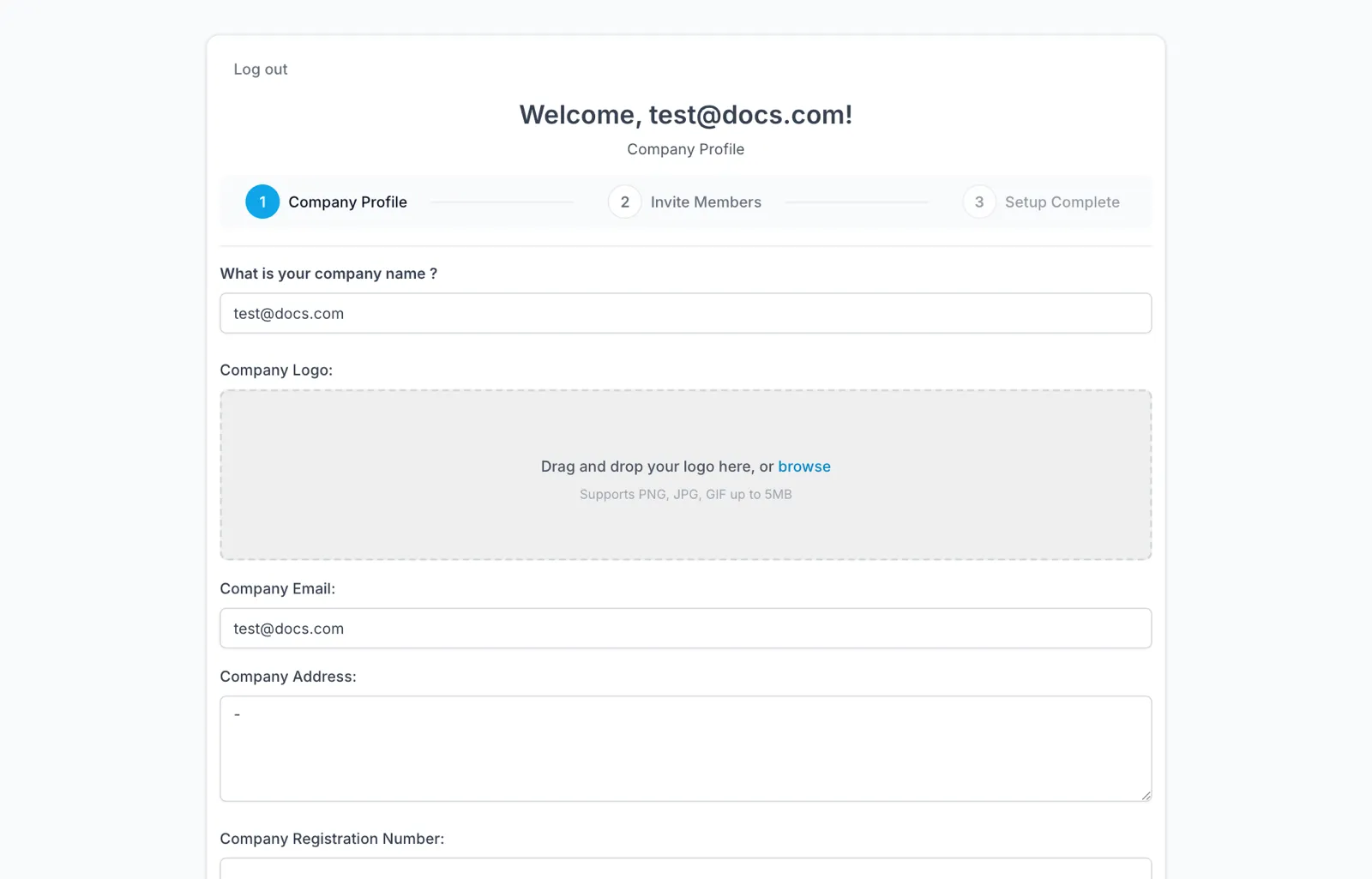
The progress bar at the top tracks the three steps: Company Profile, Invite Members, Setup Complete.
| Field | Notes |
|---|---|
| Company name | What your company is called in the app. Shown throughout, so use the real name. Must be unique across InsightsRN — if it is taken, the step will say so |
| Company logo | Optional. PNG, JPG or GIF, up to 5 MB — drag and drop, or browse |
| Company email | The general contact address for the company, not your personal login. Also must be unique |
| Company address | Optional |
| Company registration number | Optional |
| Country |
Invite your team
Section titled “Invite your team”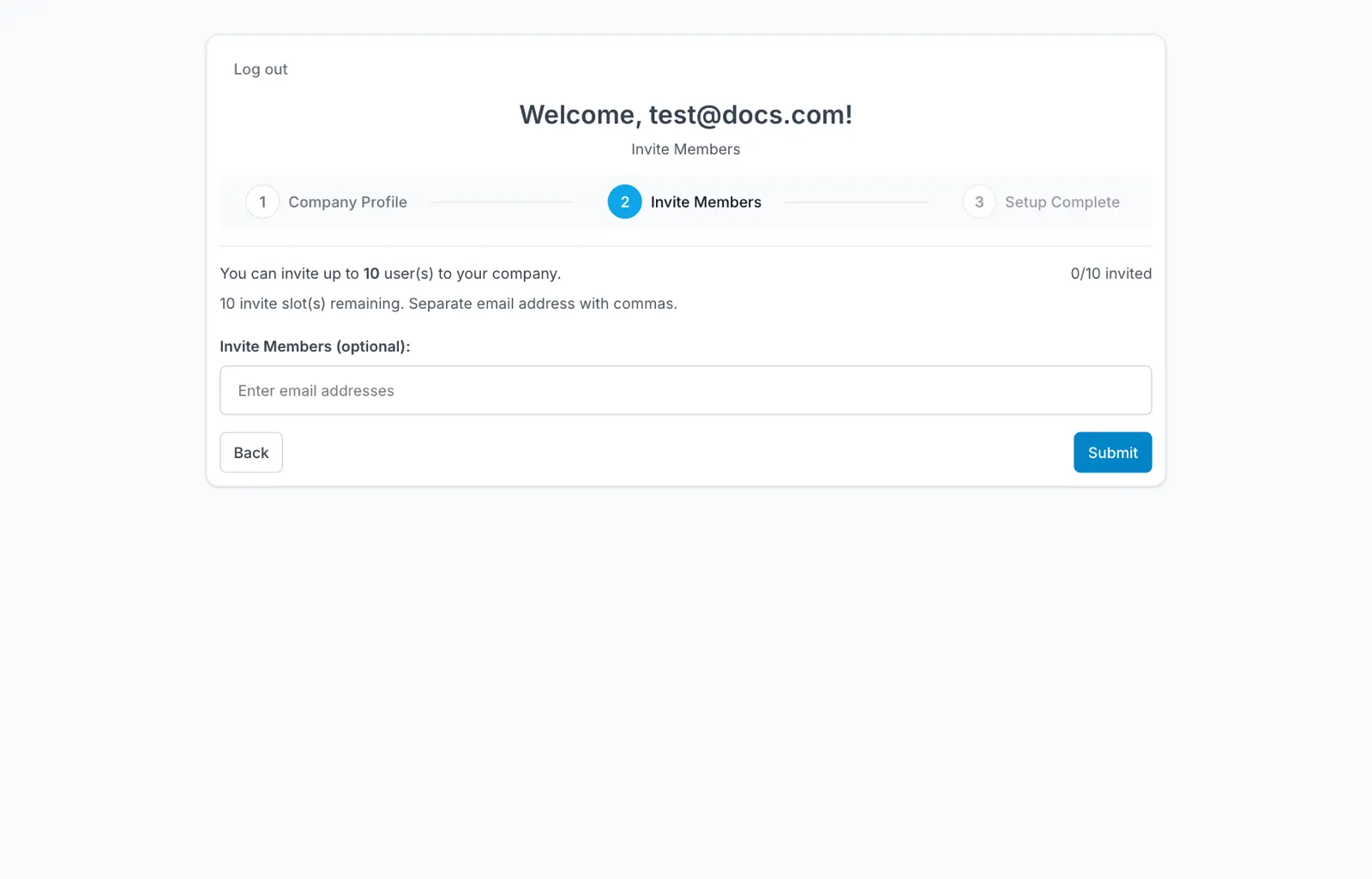
Inviting members here is optional — you can skip it and add people later from Team and users. Invitees get an email and set their own password.
Click Submit to finish. That completes setup and drops you into the app.
Finding your way around
Section titled “Finding your way around”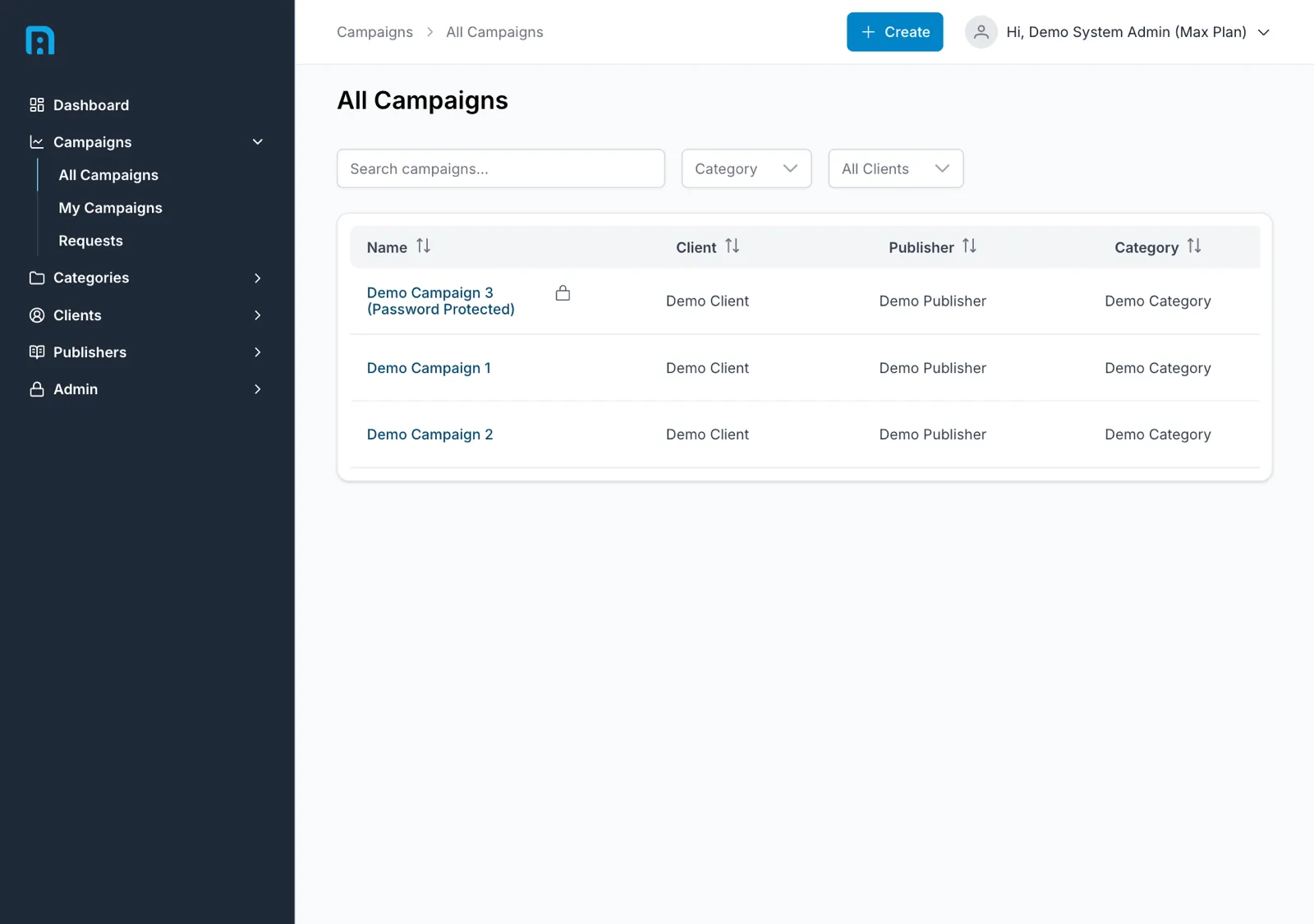
| Section | What it holds |
|---|---|
| Dashboard | Your plan usage and monthly activity |
| Campaigns | All Campaigns, My Campaigns, and Requests |
| Categories | The categories campaigns are grouped by |
| Clients | The brands your campaigns are run for |
| Publishers | The creators you track, and their account connections |
| Admin | Administrator-only: Users, Subscription, Permissions, Roles, Company Settings, Admin Dashboard |
The Admin section appears only if your role carries at least one administrator permission — in
practice system_admin or company_admin. Each entry inside it is gated on its own permission
too, so two administrators can legitimately see different lists. See the
Administrator guide. Your own profile lives under the account menu in the
top-right.
Signing in afterwards
Section titled “Signing in afterwards”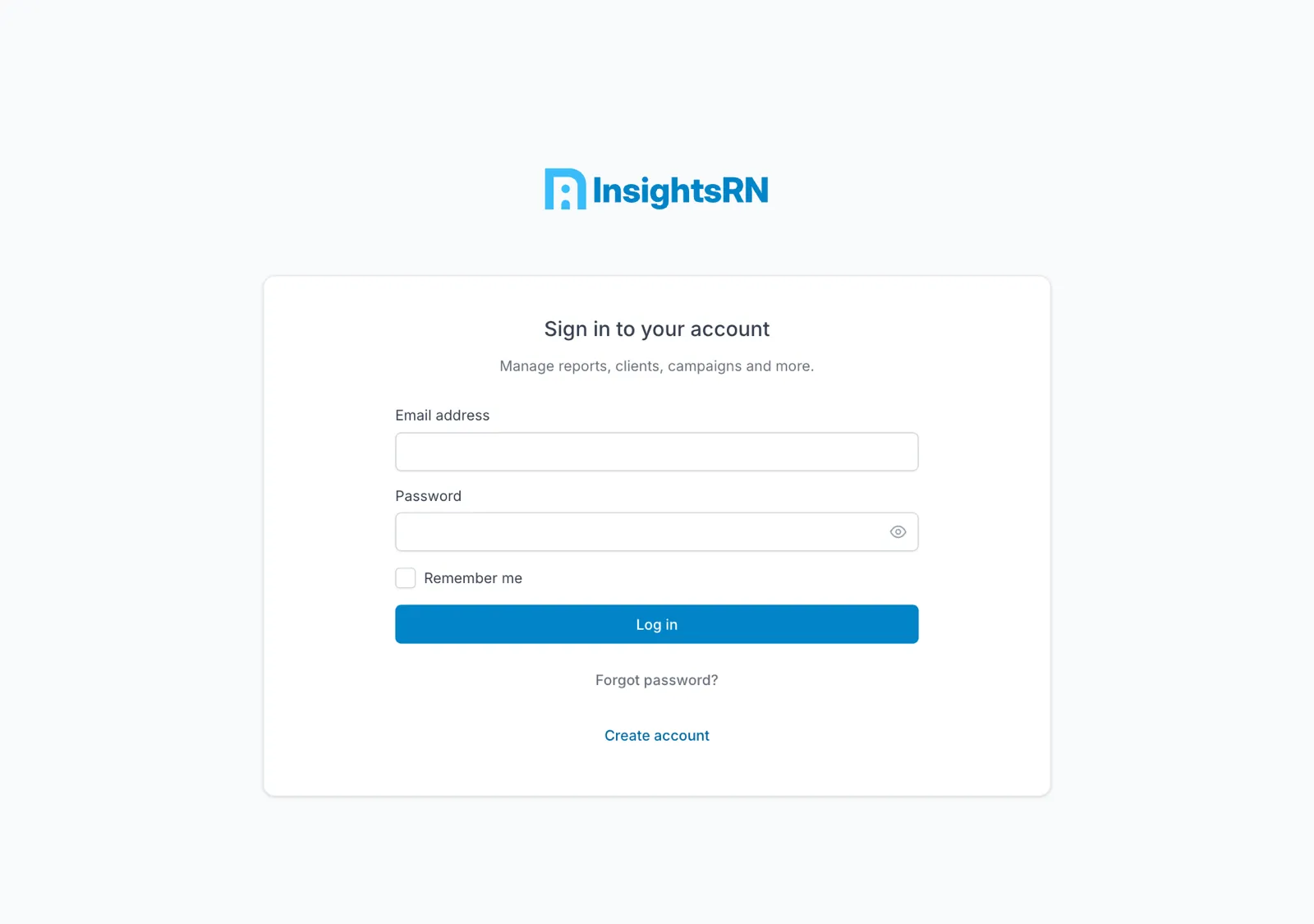
Sign in with the email address and password you registered. If your company has enabled a social login, you can use that instead.
Forgotten password
Section titled “Forgotten password”Use the password-reset link on the sign-in page. If the reset email never arrives, your company administrator can reset it for you from Team and users.
What next
Section titled “What next”- Add the client your work is for.
- Add the publishers whose content you will track, and have an administrator connect their accounts.
- Create your first campaign.