
Clients
A client is the brand a campaign is run for. Campaigns are assigned to a client, and the client’s page then rolls up everything done for that brand into one view.
Agencies use clients to keep work separated and reportable per brand. A company doing only its own marketing may keep a single client record.
Clients are company-scoped — you only ever see your own company’s clients.
The client list
Section titled “The client list”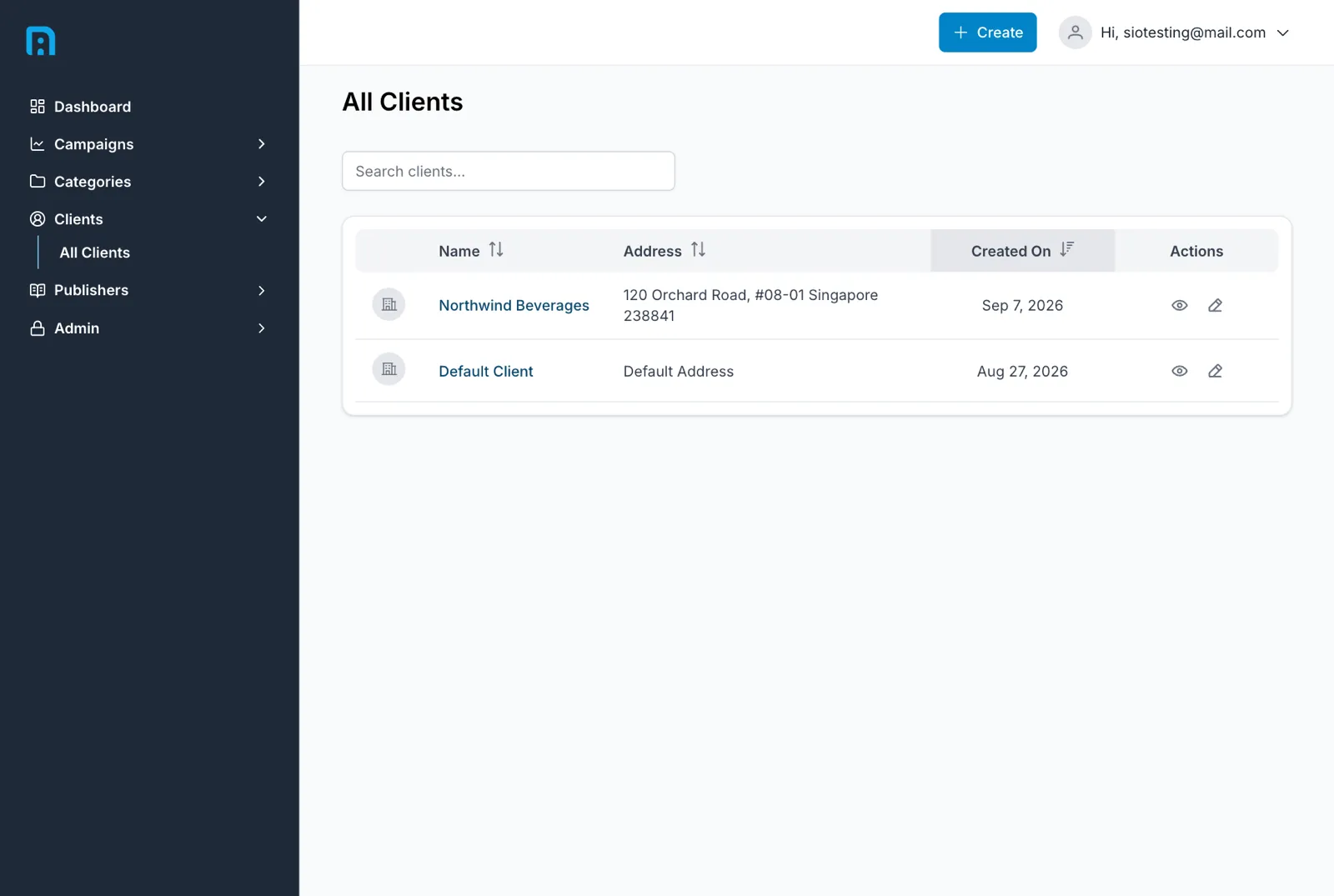
Clients → All Clients lists everything your company has, with search and sorting by name, address or creation date. Use Create in the top right to add one.
Creating a client
Section titled “Creating a client”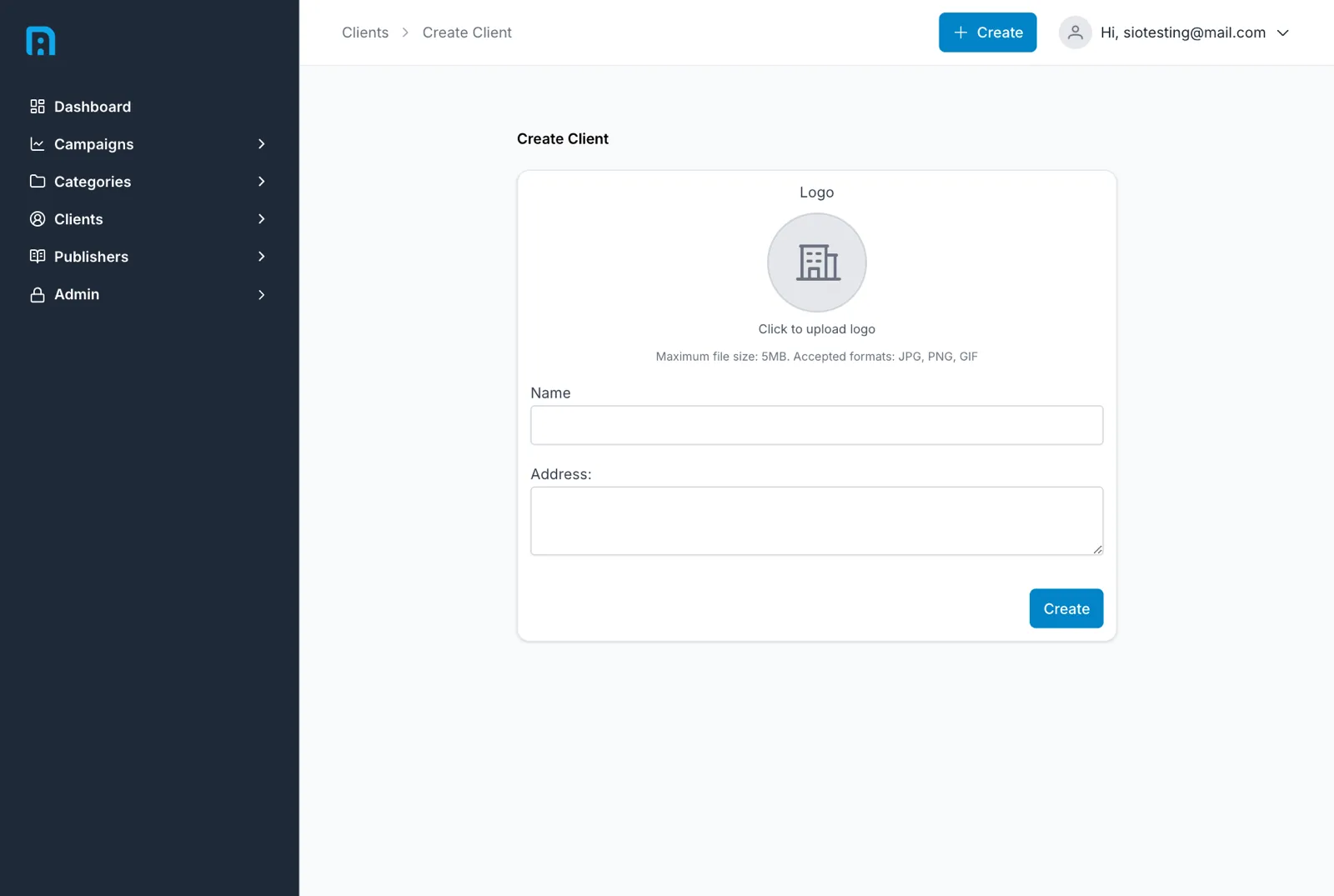
The form is short:
| Field | Required | Notes |
|---|---|---|
| Logo | — | Optional. Click the box to upload. Without one, the client shows a generic building icon |
| Name | ✅ | The brand name. It appears in the client list, on campaigns, and in reports, so use the name you would show a stakeholder. Must be unique within your company |
| Address | ✅ | Free text and multi-line, so a full postal address is fine |
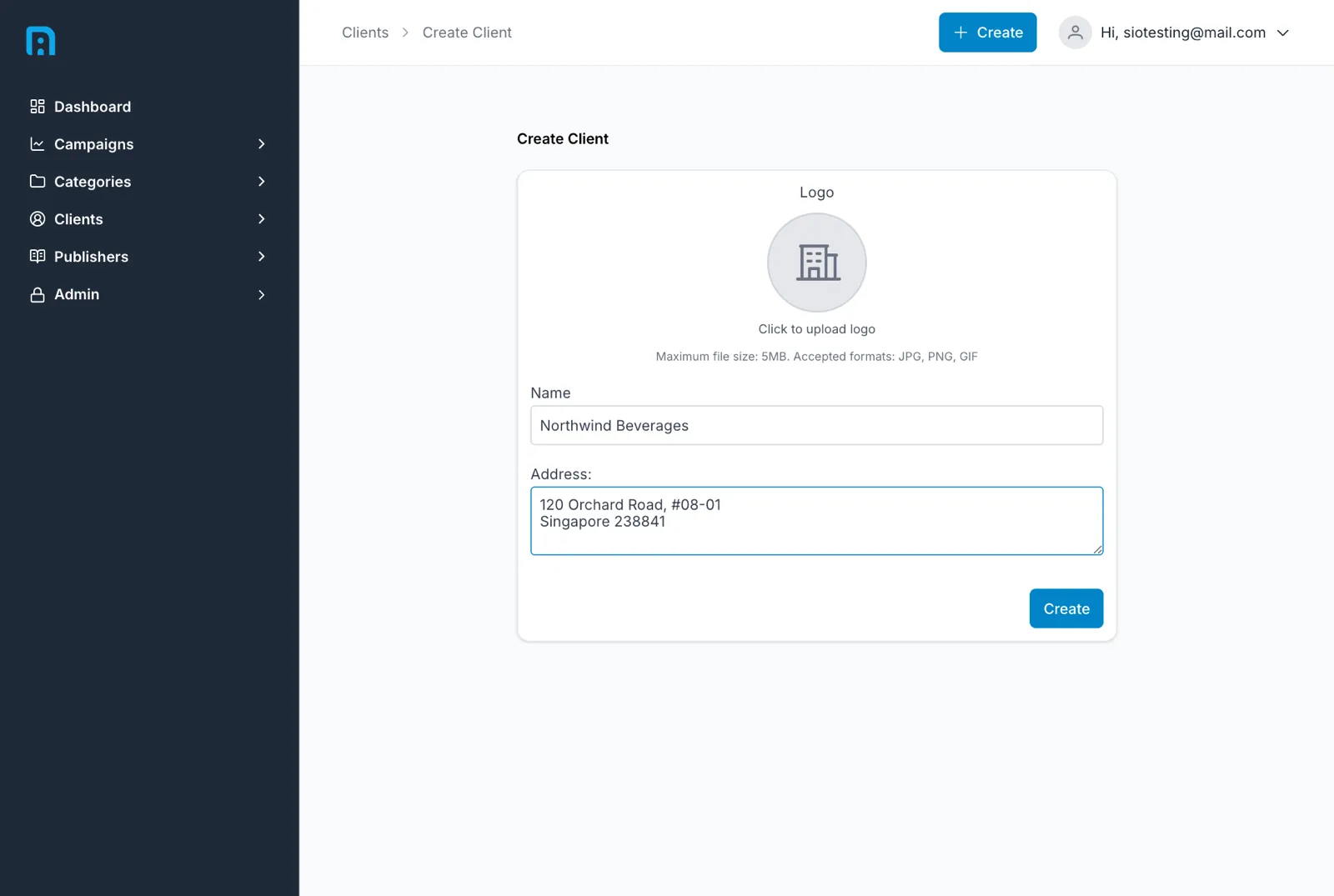
Click Create. You are returned to the client list with the new client in it.
The client page
Section titled “The client page”Opening a client shows its details, its aggregated results, and every campaign assigned to it.
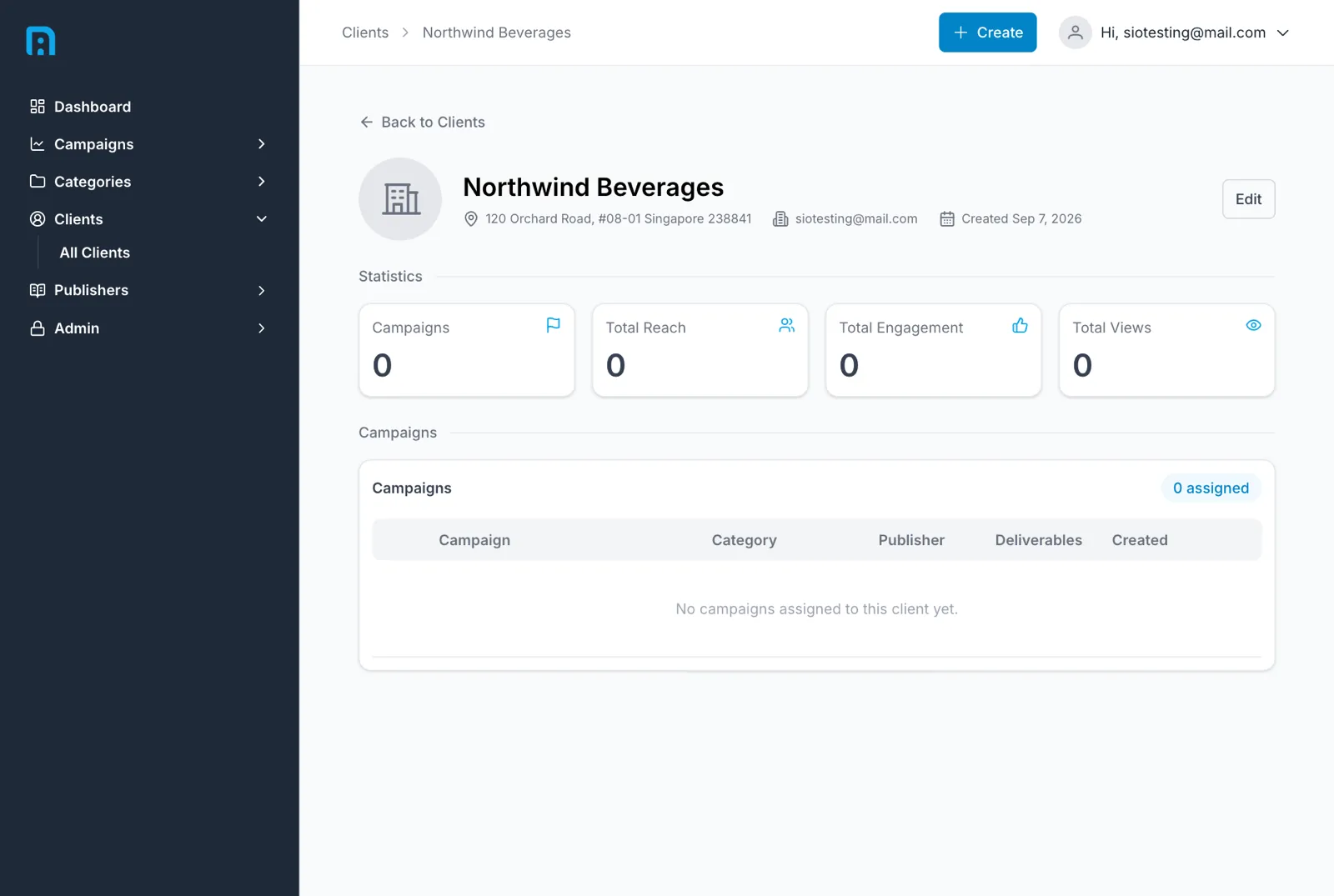
A brand-new client is empty — all four statistics read zero and the campaigns table says No campaigns assigned to this client yet. That is expected: statistics come from campaigns, so a client only gains numbers once campaigns are assigned to it and their deliverables are crawled.
Statistics
Section titled “Statistics”| Tile | What it counts |
|---|---|
| Campaigns | How many campaigns are assigned to this client |
| Total Reach | Combined reach across those campaigns’ deliverables |
| Total Engagement | Combined engagement |
| Total Views | Combined views |
These are aggregates of the client’s campaigns as of the last crawl, not live figures — see Understanding your data.
From client to campaign
Section titled “From client to campaign”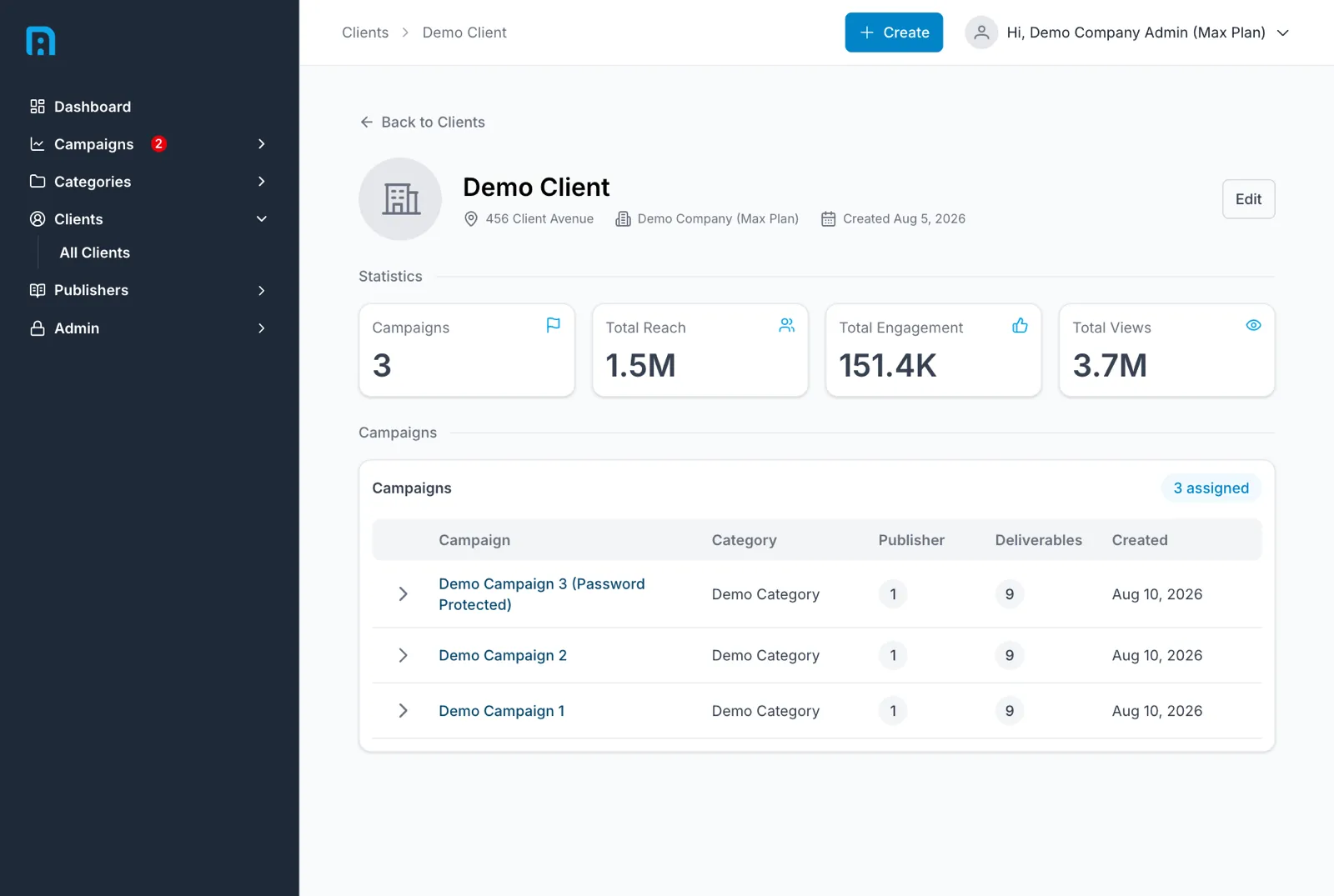
The Campaigns panel is the link between the two. Its badge shows how many campaigns are assigned, and each row gives the campaign’s category, publisher count, deliverable count and creation date. Expand a row with the chevron for more, or click the campaign name to open it.
The usual order of work is:
- Create the client — do this first, because a campaign is assigned to a client when you create it.
- Create a campaign and pick this client. See Campaigns.
- Add deliverables to that campaign as content is published.
- Once crawls run, the numbers roll up here automatically — there is nothing to link by hand.
Editing a client
Section titled “Editing a client”Edit on the client page changes the name, logo or address. Campaign assignments are not affected.
Related
Section titled “Related”- Campaigns — where a client gets assigned
- Understanding your data