
Deliverables
A deliverable is one piece of published content: one platform, one publisher, one campaign. It is the core object of InsightsRN — every figure the platform reports is an aggregate of deliverables.
Adding a deliverable
Section titled “Adding a deliverable”Deliverables are added from inside a campaign. Open the campaign and use the add deliverable button in the toolbar above it.
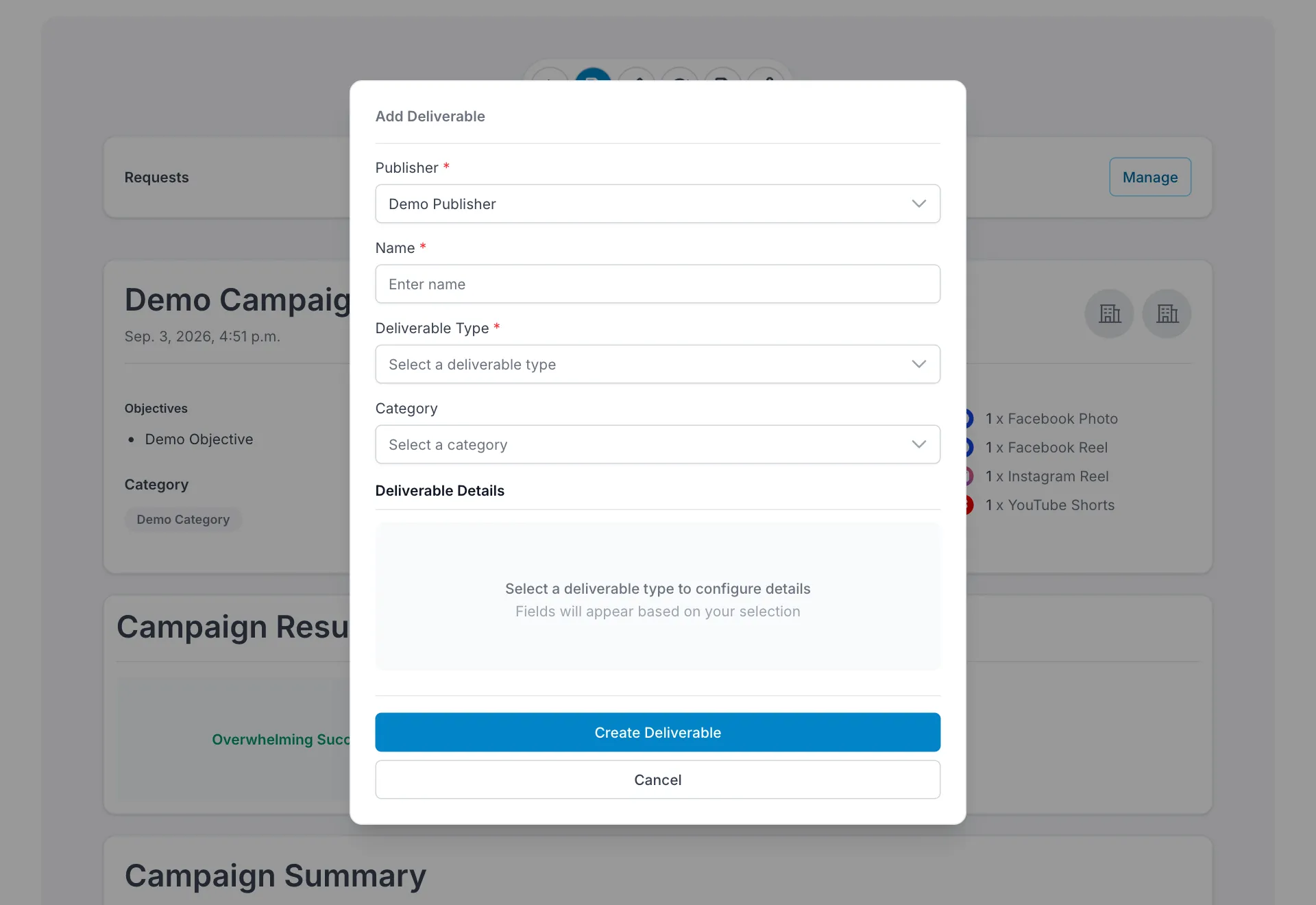
| Field | Required | Notes |
|---|---|---|
| Publisher | ✅ | Who published the content. Only publishers in your company are listed |
| Name | ✅ | How this deliverable appears in the campaign’s lists and tables |
| Deliverable Type | ✅ | The platform and format — this decides the rest of the form |
| Category | — | Optional grouping |
The type decides the fields
Section titled “The type decides the fields”Below those four is a Deliverable Details section which starts empty:
Select a deliverable type to configure details — fields will appear based on your selection.
That is the most important thing to understand about this form. Each platform’s API exposes a different set of metrics and needs different identifying information, so the fields you must fill in only appear once you have chosen the type. A Facebook Video asks for different details than an Instagram Story or a TikTok.
The full list of types is in Supported platforms and deliverable types.
Click Create Deliverable to save, or Cancel to discard.
After you add one
Section titled “After you add one”The deliverable joins the campaign immediately, but with no metrics. Numbers appear after the first successful crawl — not straight away.
On the Max plan you can force an early fetch with Refresh Metrics next to the deliverable on the campaign page. On Free and Pro that control is not available and metrics arrive on the automatic schedule — see Understanding your data.
Seeing a campaign’s deliverables
Section titled “Seeing a campaign’s deliverables”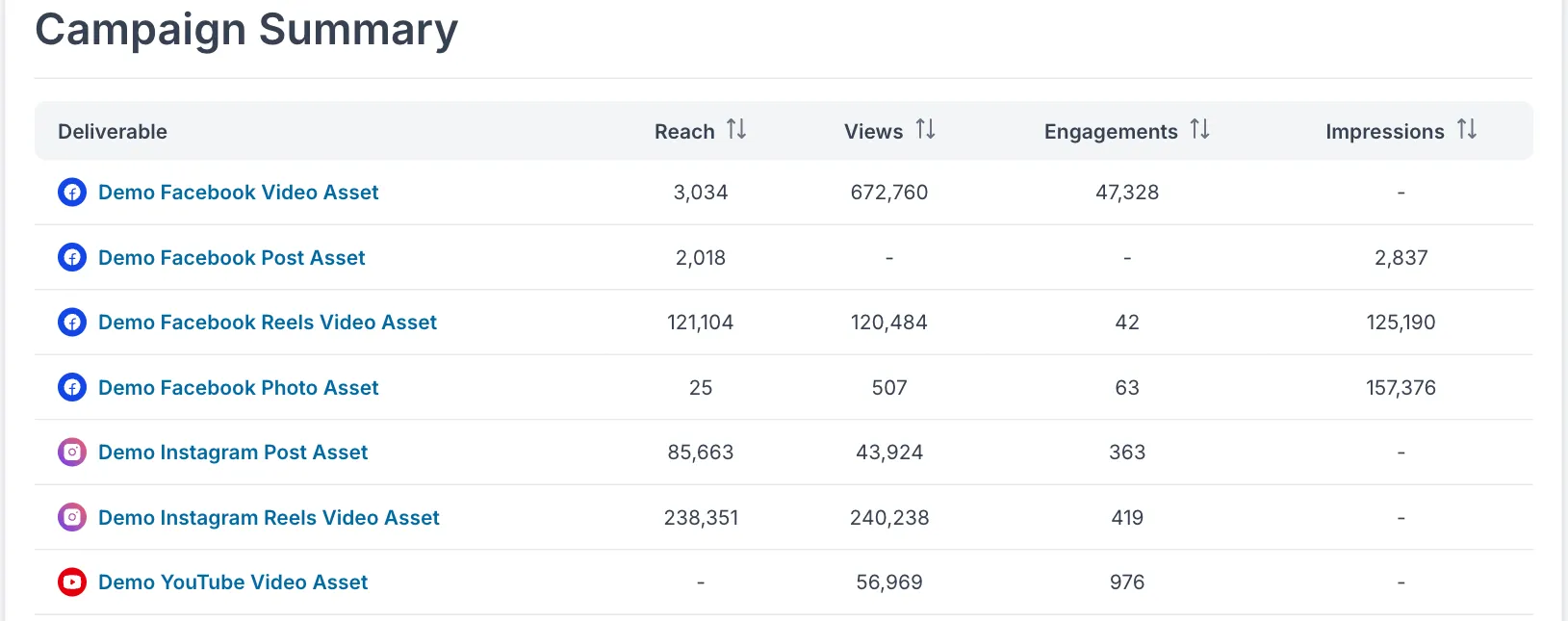
The campaign page lists every deliverable with Reach, Views, Engagements and Impressions.
The deliverable card
Section titled “The deliverable card”Scroll further down the campaign and each deliverable gets its own card, showing everything InsightsRN collected for that one piece of content.
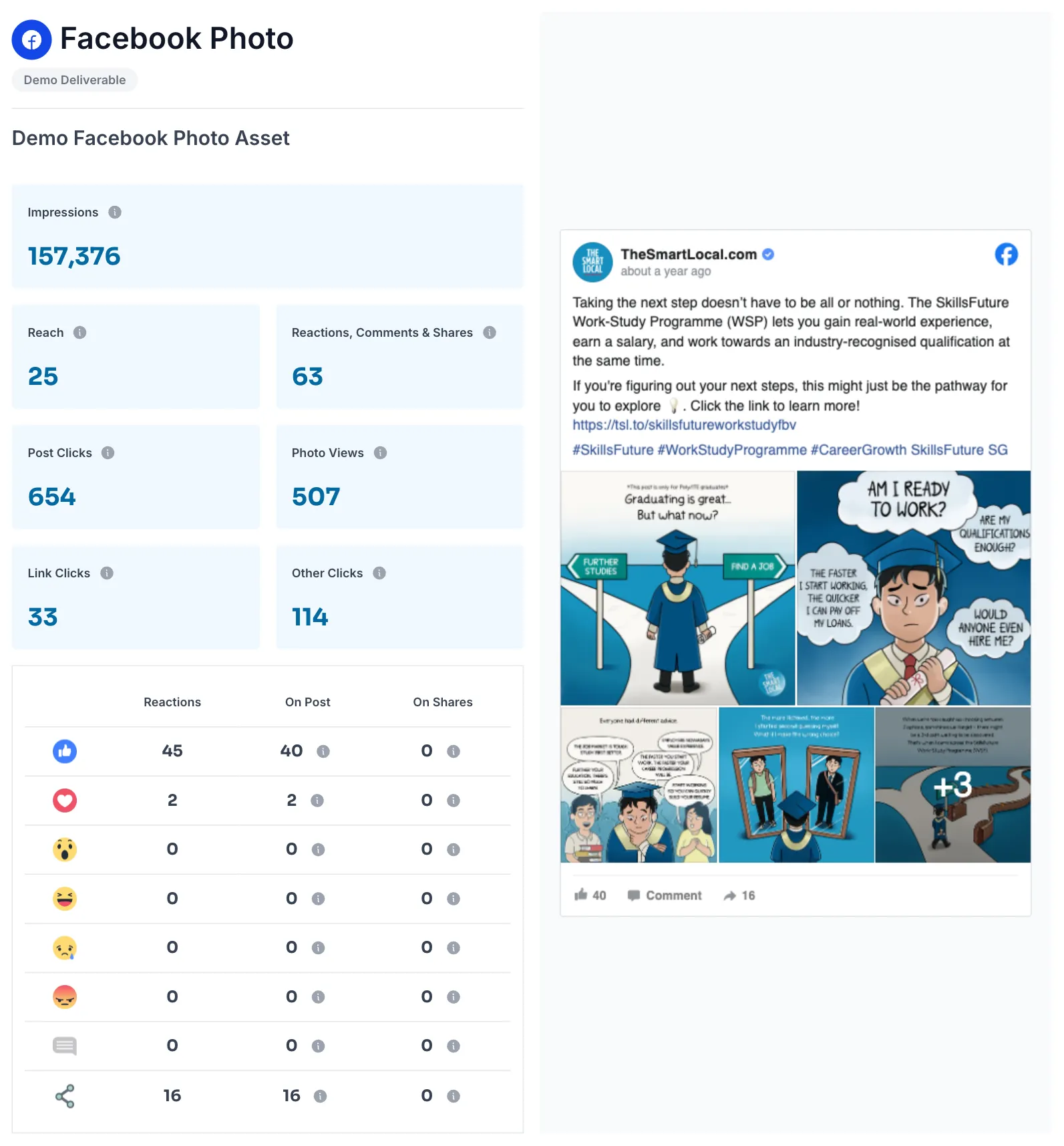
A card has three parts:
| Part | What it shows |
|---|---|
| Header | The platform and deliverable type — for example Facebook Photo — with the deliverable’s own name below |
| Metric tiles | The figures this platform reports. Tiles differ by type: a Photo shows Photo Views, a Video shows Video Views and Video Plays |
| Post preview | The published post itself, rendered from the platform, so you can confirm you are looking at the right content |
Facebook and Instagram cards also carry a reaction breakdown — each reaction type counted On Post and On Shares separately, alongside comments and shares.
A publisher’s own page breaks their deliverables down by platform with counts and shares — see Publishers.
When a card says “Metrics unavailable”
Section titled “When a card says “Metrics unavailable””If InsightsRN could not collect anything for a deliverable, the card replaces its metric tiles with a Metrics unavailable panel rather than leaving you staring at an empty card that looks like it is still loading.
The panel says in plain language what went wrong. The usual ones:
| What it says | What it means |
|---|---|
| This publisher’s account is no longer connected | The commonest by far. Reconnect the publisher, then refresh |
| Invalid link — this post cannot be accessed | The link or the selected publisher does not match the post |
| We’ve hit this platform’s request limit for now | Temporary. Metrics resume on the next scheduled refresh |
| We couldn’t reach the service that supplies these metrics | A platform or network problem at our end |
Below the message is a Report ID, and two buttons:
| Button | What it does |
|---|---|
| Submit report | Sends the failure straight to the InsightsRN team, complete with the technical detail you are not shown. Use this first |
| Copy report details | Copies a short plain-text summary — the report ID, your company, campaign, deliverable, publisher, a link back to this card, and a timestamp — ready to paste into an email or chat |
Pressing Submit report more than once does not pile up duplicates; it records that the problem happened again. And if the metrics have quietly started working by the time you press it, InsightsRN tells you so instead of filing anything.
If a deliverable never gains metrics
Section titled “If a deliverable never gains metrics”Work through these in order:
- Is the publisher connected? A greyed-out platform icon on the publisher list means that account is not connected, so nothing on it can be crawled.
- Is the identifying detail correct? A wrong URL or post identifier will not match anything.
- Does the content still exist and is it still public?
- Has a crawl run yet? On the Max plan, try Refresh Metrics before assuming something is broken.
- Still nothing? Press Submit report on the card’s Metrics unavailable panel, or send support the Report ID from Copy report details.
More detail: Understanding your data.
Related
Section titled “Related”- Campaigns — where deliverables live
- Supported platforms and deliverable types
- Publishers