
Campaigns
A campaign is a unit of work for a client over a period of time. It holds the deliverables, the aggregated statistics, and the results you share with the brand.
The campaign list
Section titled “The campaign list”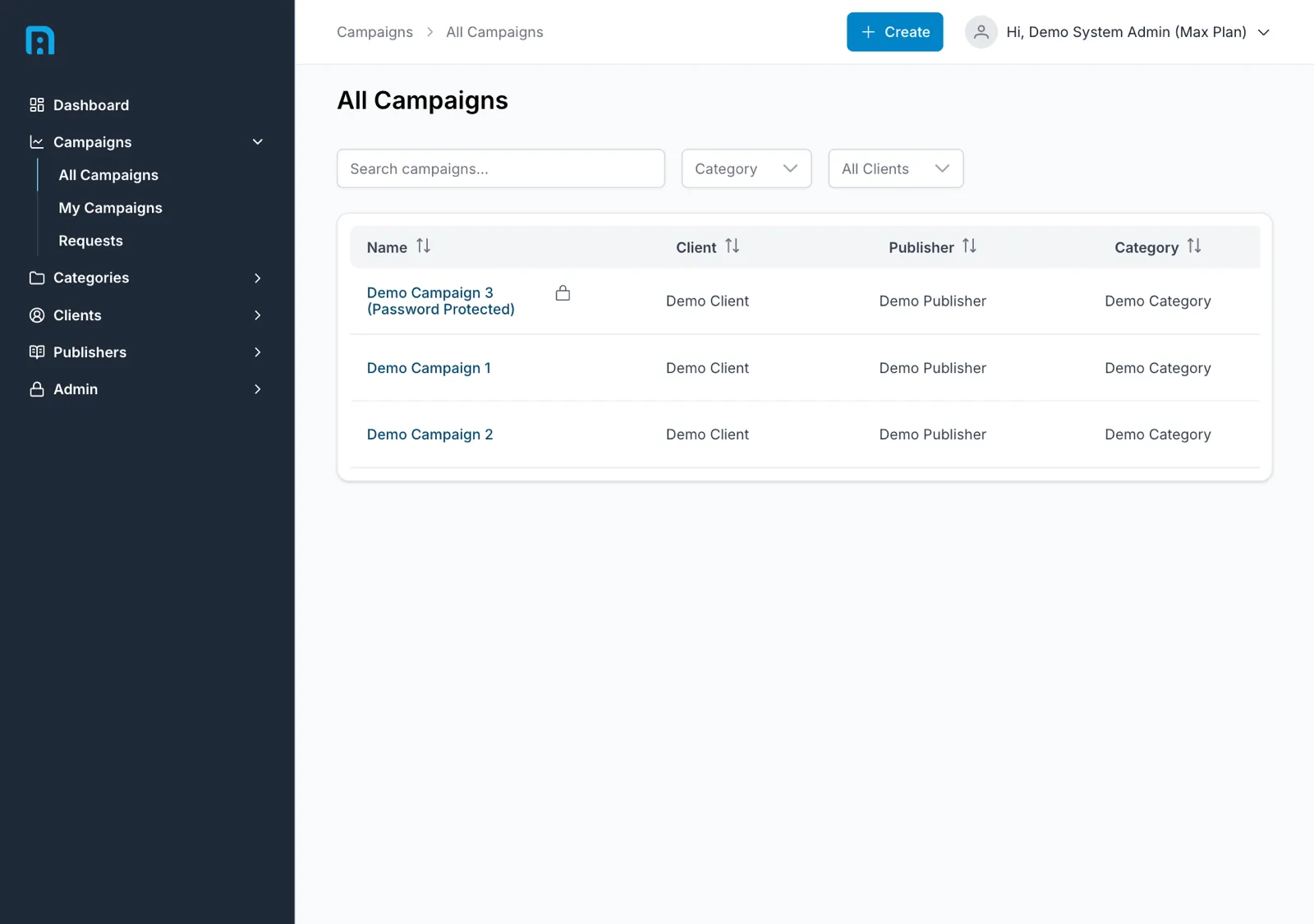
Campaigns → All Campaigns shows every campaign you can see, with columns for Name, Client, Publisher, Category, Created By and Created. Search by name, or filter by category and client.
My Campaigns narrows this to campaigns you created. Requests collects colleagues asking for access to campaigns you created — see Campaign access requests. It carries a badge with the number still waiting on you.
Creating a campaign
Section titled “Creating a campaign”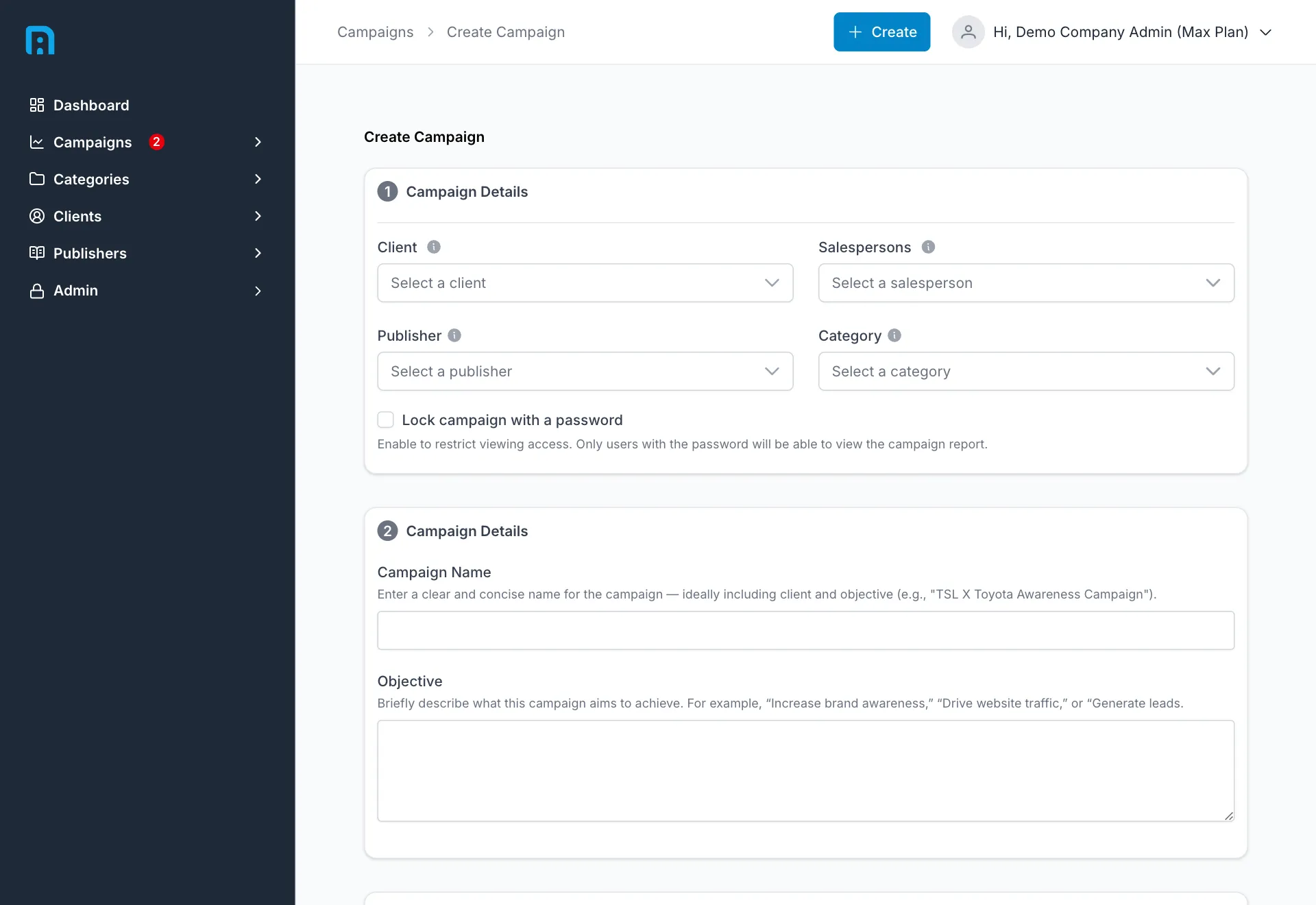
| Field | Notes |
|---|---|
| Client | The brand this campaign is for. The client must already exist — see Clients |
| Salespersons | Optional. The colleagues responsible for the campaign |
| Publisher | The creator whose content this campaign will track |
| Category | Groups campaigns for filtering and reporting |
| Campaign Name | Shown in lists, on the client’s page and in reports |
| Objective | What the campaign is meant to achieve — free text, shown on the campaign page |
| Lock campaign with a password | Requires a password before the campaign’s shared report can be opened — see Sharing a campaign |
Click Create Campaign.
The campaign page
Section titled “The campaign page”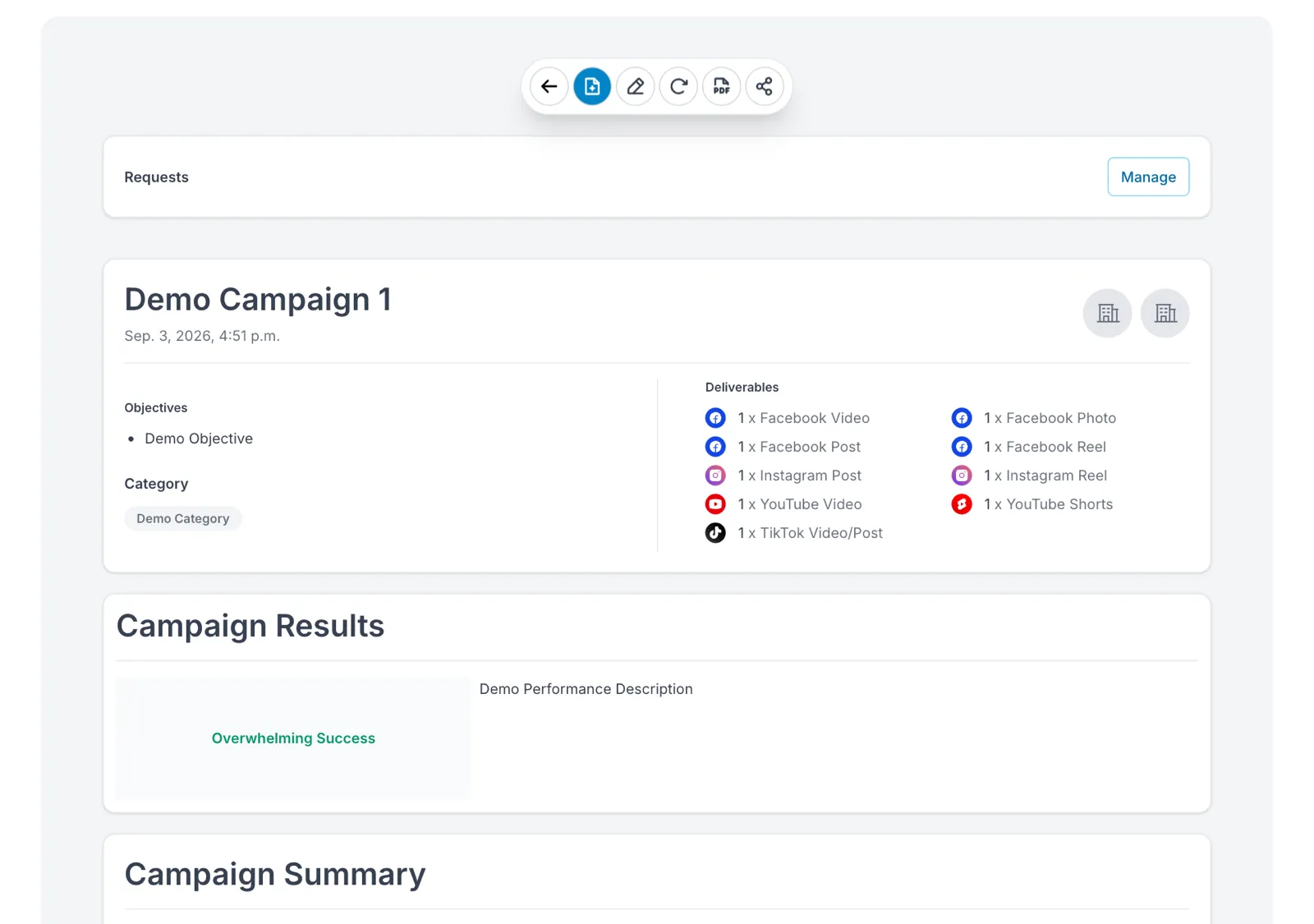
The page opens with the campaign’s identity and a summary:
- Objectives and Category as entered when it was created.
- Deliverables — a count per platform and type, for example 1 × Facebook Video, 1 × Instagram Reel, 1 × TikTok Video/Post.
- Campaign Results — the headline verdict and its description.
- Campaign Summary — aggregate figures across the campaign.
The toolbar
Section titled “The toolbar”A row of icon buttons sits above the campaign. From left to right they let you go back to the campaign list, add a deliverable, edit the campaign, refresh its metrics, produce a PDF, and share the campaign.
Campaign access requests
Section titled “Campaign access requests”The Requests panel and its Manage button control who in your company can open this campaign.
Access is granted per person, and each grant carries two levels:
| Level | Lets them |
|---|---|
| Visible | Open the campaign and read its results |
| Editable | Change the campaign and its deliverables |
A colleague who cannot see a campaign can ask for access. The request arrives as pending for the person who created the campaign, who approves or dismisses it under Manage. You can also grant access from Manage without waiting to be asked.
Campaigns → Requests in the sidebar gathers every pending request across all the campaigns you created, so you do not have to open each one to find them.
Performance
Section titled “Performance”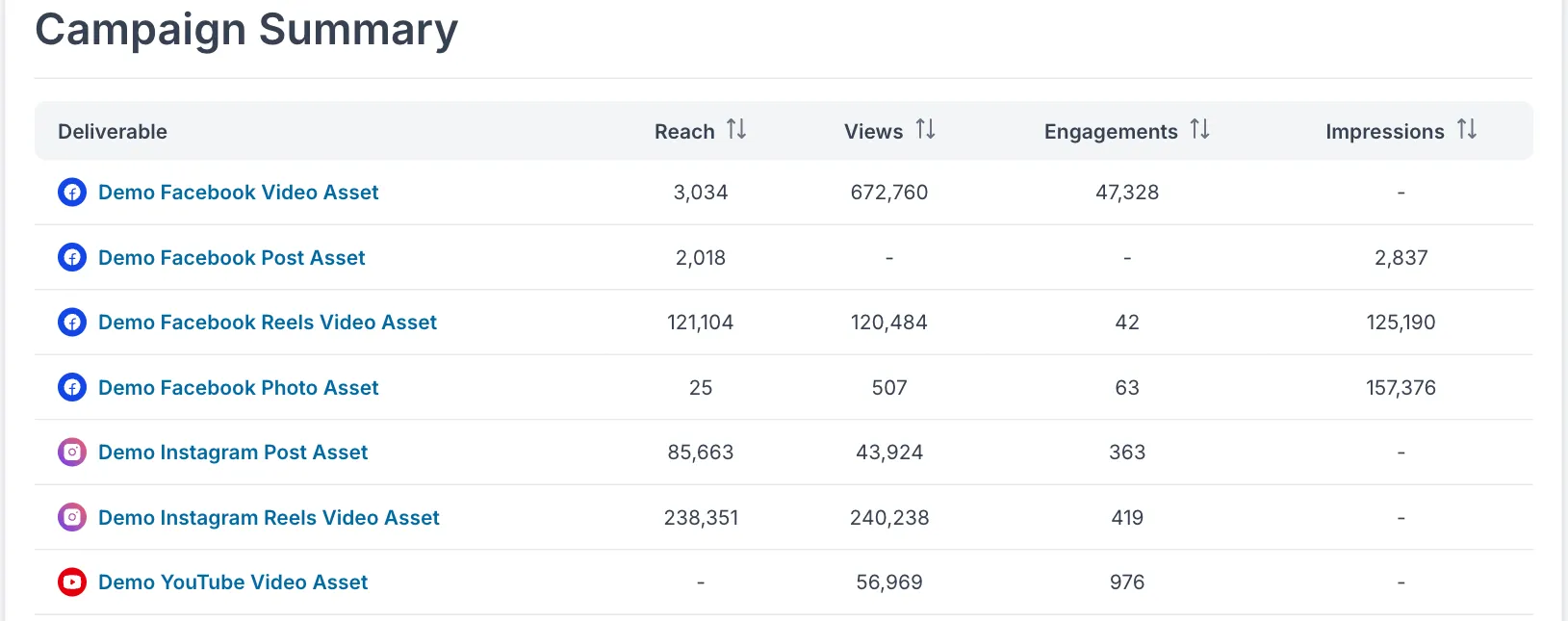
Below the summary, every deliverable is listed with Reach, Views, Engagements and Impressions, followed by per-platform detail panels — Facebook, Instagram, YouTube and TikTok each report the metrics their own API exposes, so the panels differ by platform.
Each deliverable carries two controls:
- Edit — change the deliverable’s details.
- Refresh Metrics — fetch that deliverable’s numbers again rather than waiting for the next scheduled crawl. Max plan only — on Free and Pro this control is not shown.
Sharing a campaign
Section titled “Sharing a campaign”The campaign page is where you produce something to send a brand. Its toolbar offers a PDF of the campaign and a share action.
A shared campaign is reachable at a link of the form:
https://<your-insightsrn-domain>/report/<unique id>The recipient needs no InsightsRN account. They see a read-only report, not the app.
A shared report shows the same crawled figures as the campaign page, as of the last successful crawl. If something looks stale, refresh the metrics before sending the link.
Related
Section titled “Related”- Deliverables — adding content to a campaign
- Clients
- Understanding your data